This guide walks you through a "do it yourself" demo of Secondo,
the moving objects database system. In about 15–20 minutes you will install
Secondo, restore an example database, and run queries that
compute the trajectory of a moving underground train, find all trains passing through a
region, and see the query optimizer in action — without having to read any manuals
or papers first.
What is a Moving Object?
Secondo can represent and query complete histories of movement.
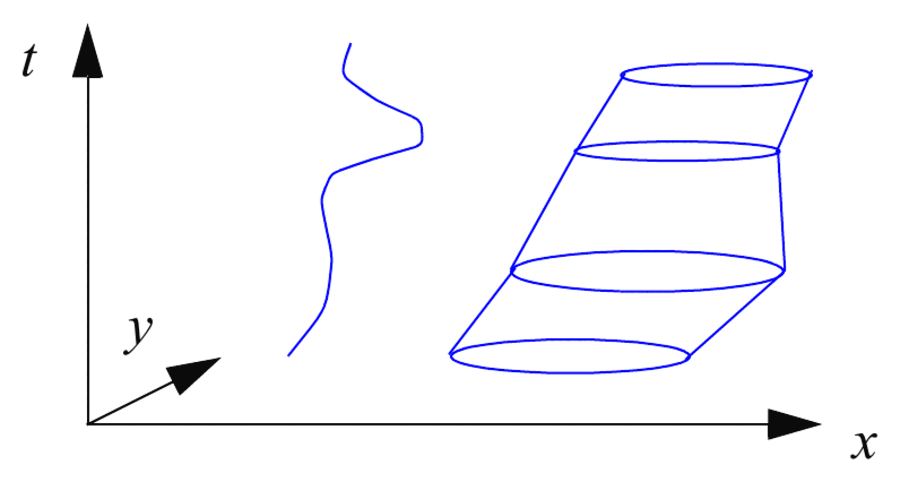
A trip taken by a vehicle can be stored as a single value of type moving point
(mpoint for short), and the spread of a forest fire over time can be stored as a
single value of type moving region (mregion). A moving point is
essentially a function from time into point values, and a moving region a function from time
into region values; they can be visualized as shown below.
Together with these data types, Secondo provides operations to
query and manipulate them, for example:
Operation
Signature
Meaning
trajectory
mpoint → line
the 2D projection of a moving point
distance
mpoint × point → mreal
time-dependent distance between a moving point and a static point
passes
mpoint × region → bool
whether a moving point ever passes through a given area
inside
mpoint × mregion → mbool
time-dependent boolean indicating when the point is inside the moving region
This approach to modeling and querying moving objects is described in a series of papers and
in the textbook Moving Objects Databases (Morgan Kaufmann, 2005); see the
Publications page for details.
Step 1: Install SECONDO
If you do not yet have a Secondo installation, the fastest way to
try it is the official container image. It bundles everything you need, so no local
build is required:
docker run -d--name secondo -p 8000:8000 -p 1234:1234 \-v secondo-databases:/var/lib/secondo/databases \
ghcr.io/secondo-database/secondo:latest
This gives you the Secondo WebUI in your browser at
http://localhost:8000; you can skip ahead to
Step 4. If you would rather install
Secondo natively (Ubuntu .deb packages, building from
source, or macOS via Homebrew), see the full
Installation Instructions page and then come back here.
Step 2: Restore the Example Database
Open a shell and change to the secondo/bin directory (skip this step for the
Ubuntu .deb or container installation, where the
Secondo commands are available from any directory):
cd secondo/bin
Start a single-user session:
./SecondoTTYBDB
Restore the example database used in this guide, then quit:
restore database berlintest from berlintest;
close database;
q
In the Ubuntu .deb installation, the database files live in
/opt/secondo/bin, so use instead:
restore database berlintest from '/opt/secondo/bin/berlintest';
A command at this interface is terminated by either a semicolon or an empty line.
Step 3: Start the Kernel and the WebUI
Still in secondo/bin, start the kernel process that user interfaces connect to:
./SecondoMonitor -s
Open a new shell, change to secondo/WebUI (not needed for the
.deb or container installation), and start the WebUI:
make prod
After the command make prod has finished, the WebUI is available in your browser at
http://localhost:8000.
In the database and catalog view at the left of the WebUI, open the berlintest database.
Alternatively, you can also use the command line in the WebUI to open the database:
open database berlintest
Step 4: Run Your First Queries
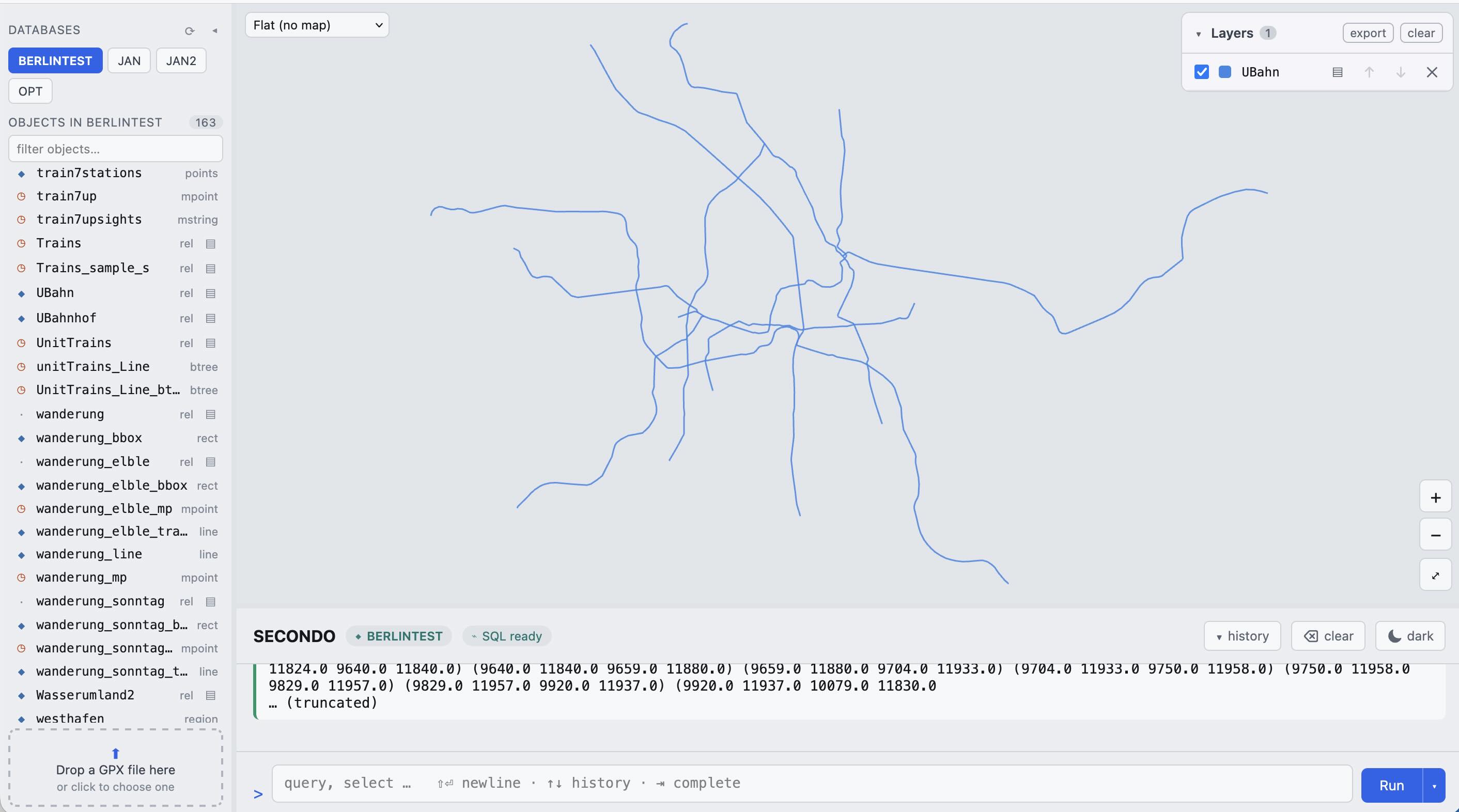
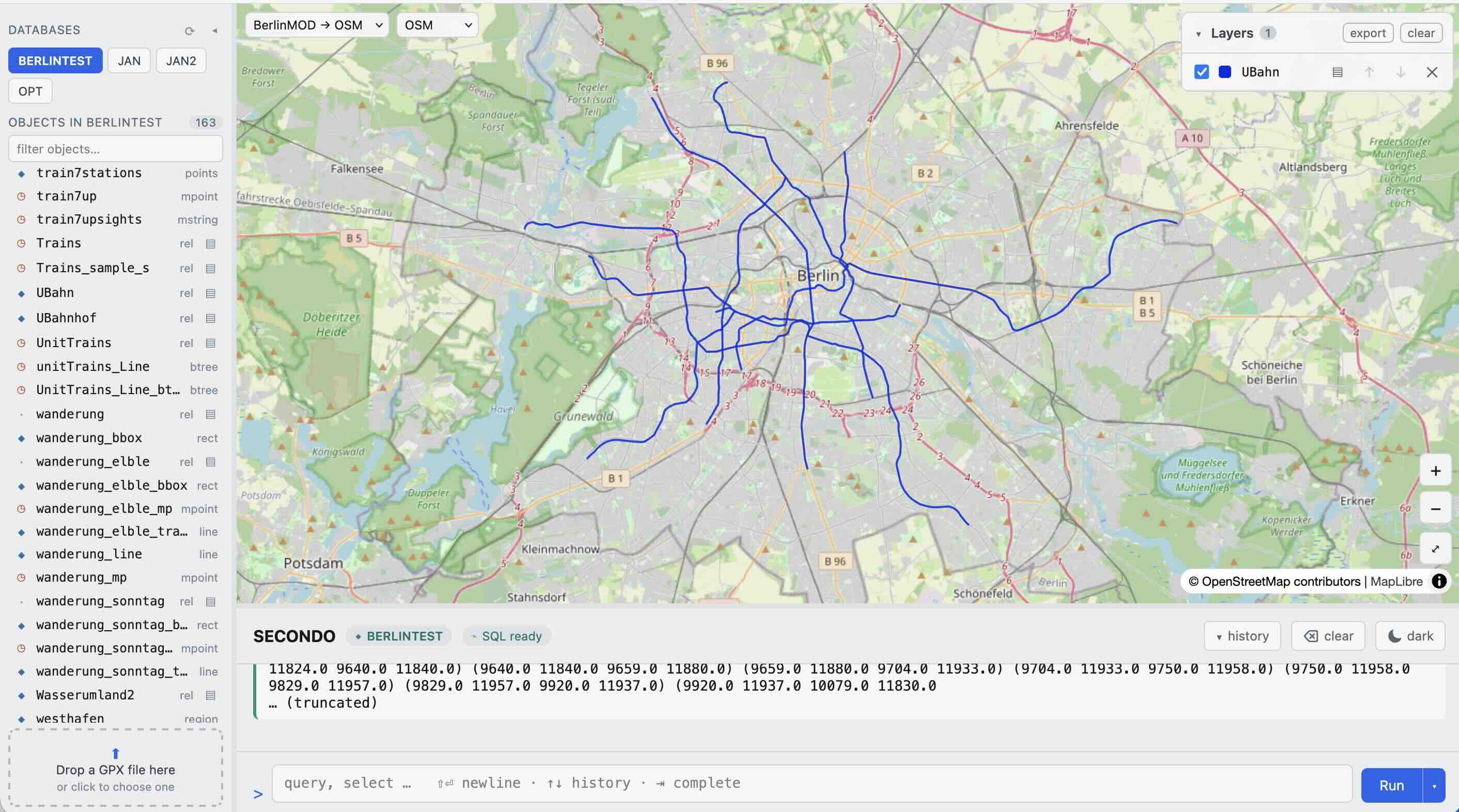
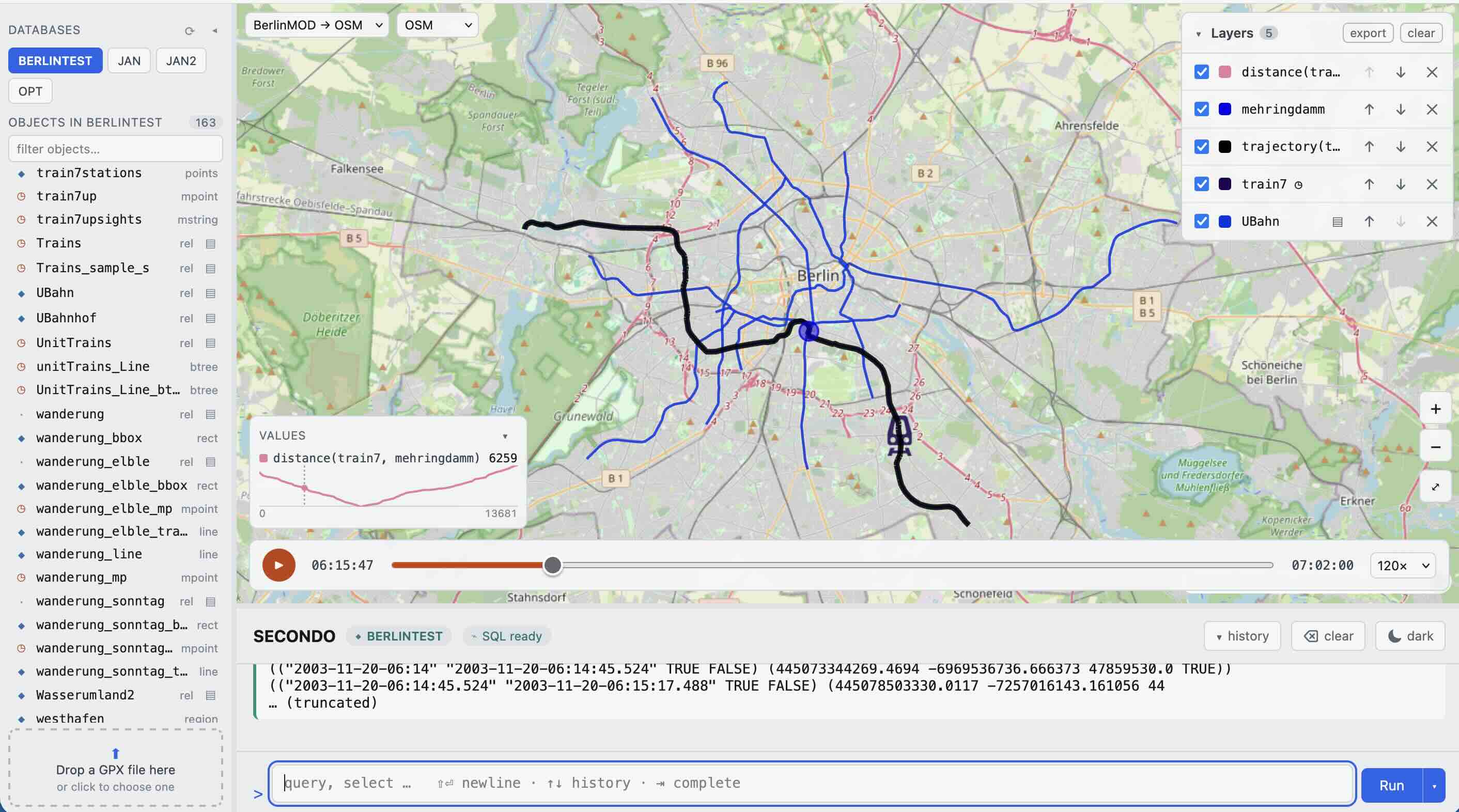
To load the underground network of Berlin as a background, type:
query UBahn
Or click on the UBahn entry in the catalog view at the left. The network appears in the main view.
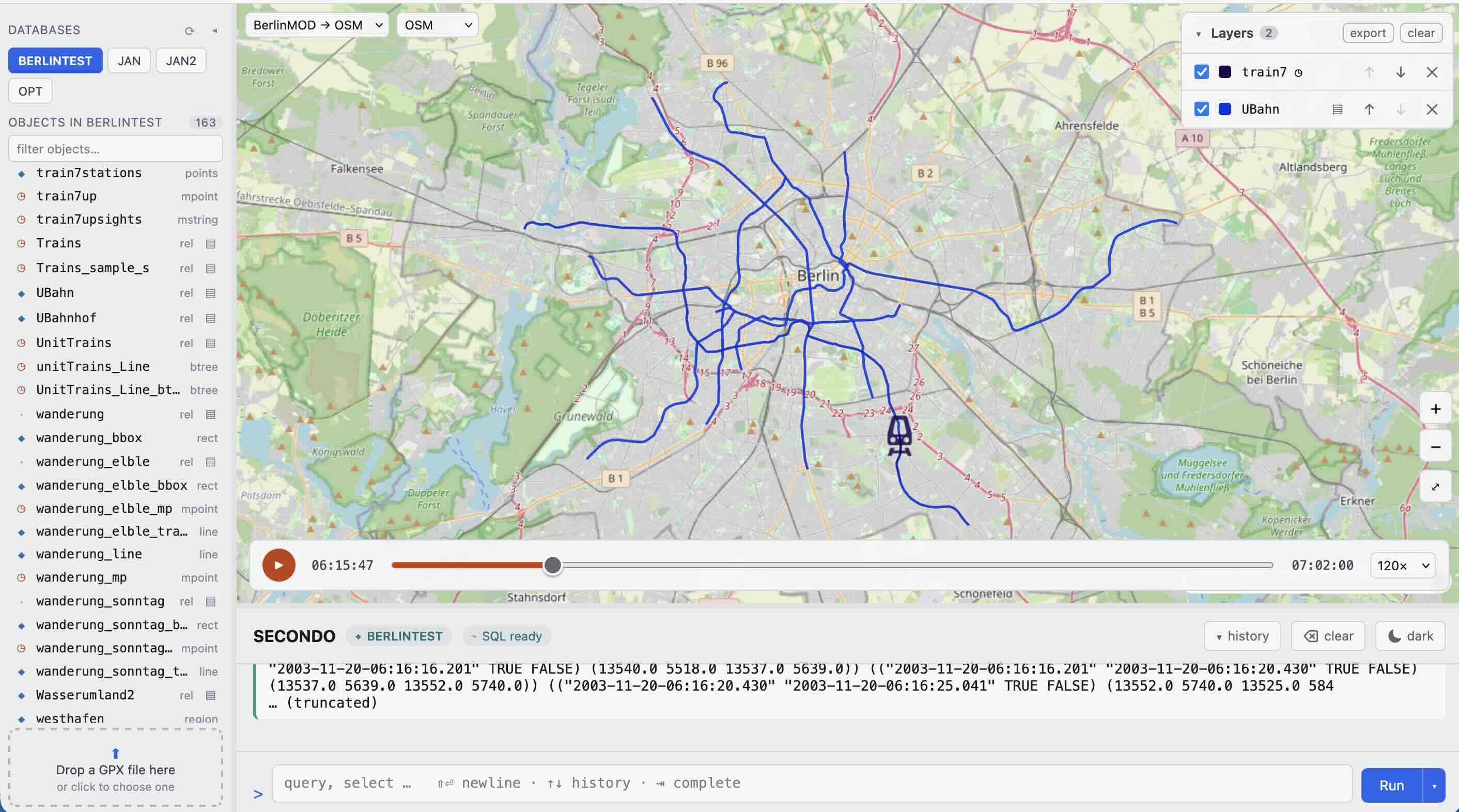
The Berlin underground network appears — we will use it
as a background for the moving trains stored in the relation
Trains(Id: int, Line: int, Up: bool, Trip: mpoint), which holds 562 trains
moving on 2003‑11‑20.
You can adjust the color and the width of the lines by clicking on the UBahn layer
on the top right and adjusting it.
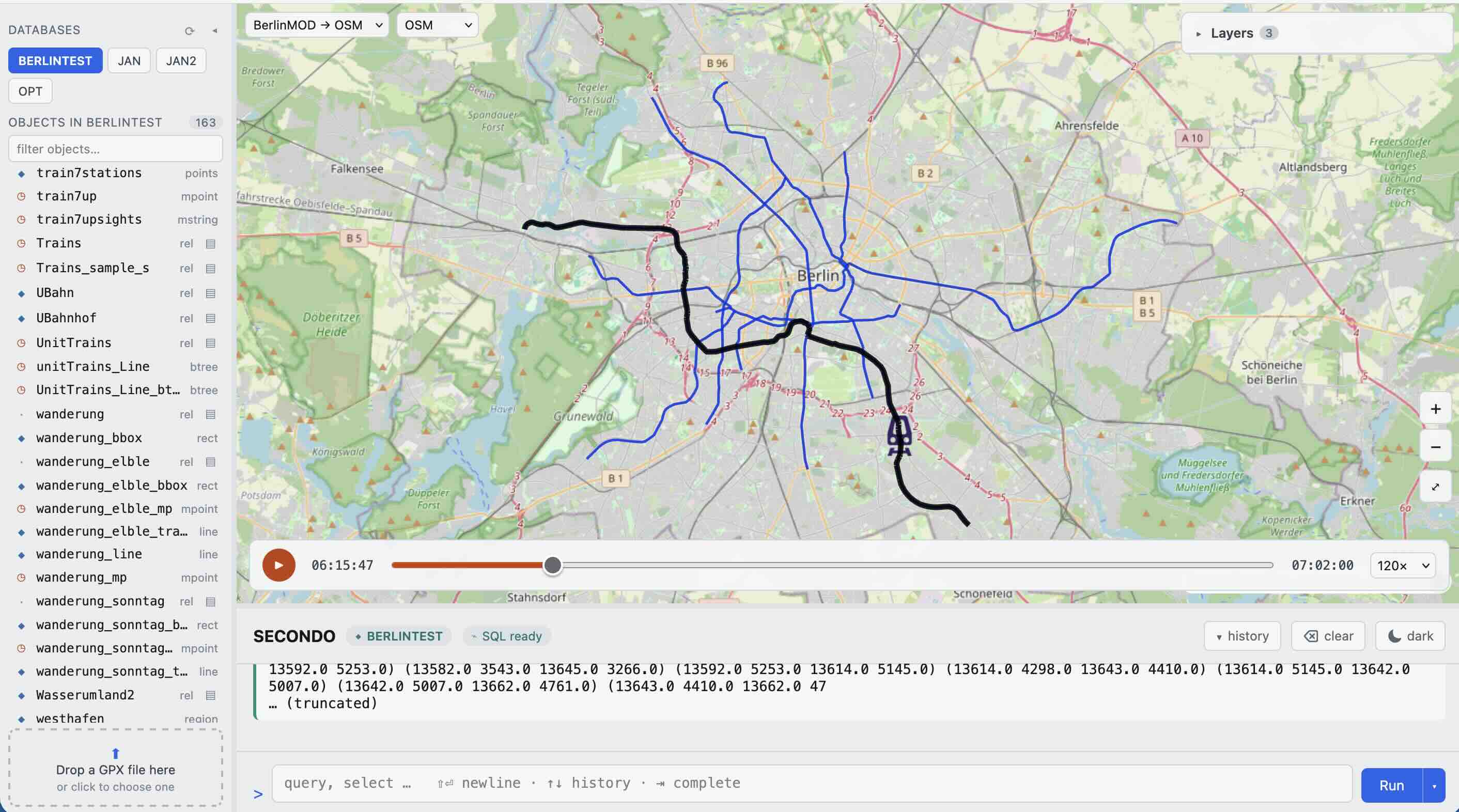
The first optimizer query takes a little longer while it initializes; the result is 122.
See the individual trains with:
select*fromTrainswhereTrippassesmehringdamm
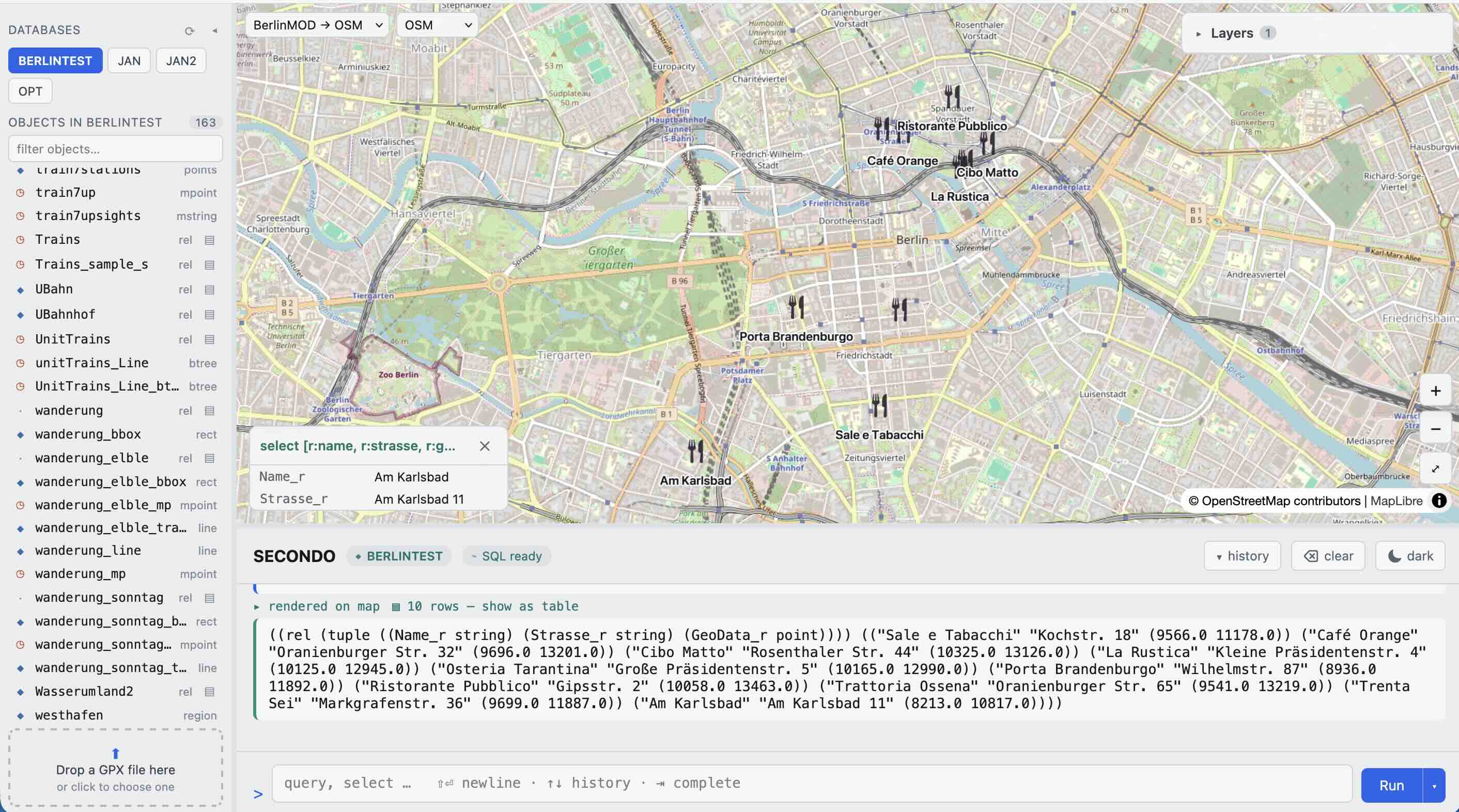
Also more complex queries can be optimized, not just on moving objects. The
berlintest database also contains restaurants and sights of interest in Berlin.
Find the names and addresses of all Italian restaurants within 2 km of the
Brandenburg Gate:
To browse the available data types and operations from the GUI command line, type
list algebras, or for one algebra, e.g.
list algebra TemporalAlgebra. To search for a specific operator, e.g.
atinstant:
Try the larger BerlinMOD Benchmark, a full
benchmark suite for moving-objects databases built on the same data.
See the research in the Publications
list, including the Moving Objects Databases textbook.
Related Papers, Book
The spatio-temporal data model implemented by Secondo is
described in the following papers and in the textbook Moving Objects Databases. See
the Publications page for further
Secondo-related papers.
M. Erwig, R.H. Güting, M. Schneider, and M. VazirgiannisSpatio-Temporal Data Types: An Approach to Modeling and Querying Moving Objects in DatabasesGeoInformatica 3:3 (1999), 269-296.
R.H. Güting, M.H. Böhlen, M. Erwig, C.S. Jensen, N.A. Lorentzos, M. Schneider, and M. VazirgiannisA Foundation for Representing and Querying Moving ObjectsACM Transactions on Database Systems 25:1 (2000), 1-42.
L. Forlizzi, R.H. Güting, E. Nardelli, and M. SchneiderA Data Model and Data Structures for Moving Objects DatabasesProc. ACM SIGMOD Conf. (Dallas, Texas), May 2000, 319-330.
J.A. Cotelo Lema, L. Forlizzi, R.H. Güting, E. Nardelli, and M. SchneiderAlgorithms for Moving Objects DatabasesThe Computer Journal 46:6 (2003), 680-712.

 Together with these data types, Secondo provides operations to
query and manipulate them, for example:
Together with these data types, Secondo provides operations to
query and manipulate them, for example: